SYNAE
What Is SYNAE? Intelligent Scene Analysis for Blender
Understand SYNAE’s local scene analysis, optional AI workflow, and review-before-change approach—and where your own judgment still matters.
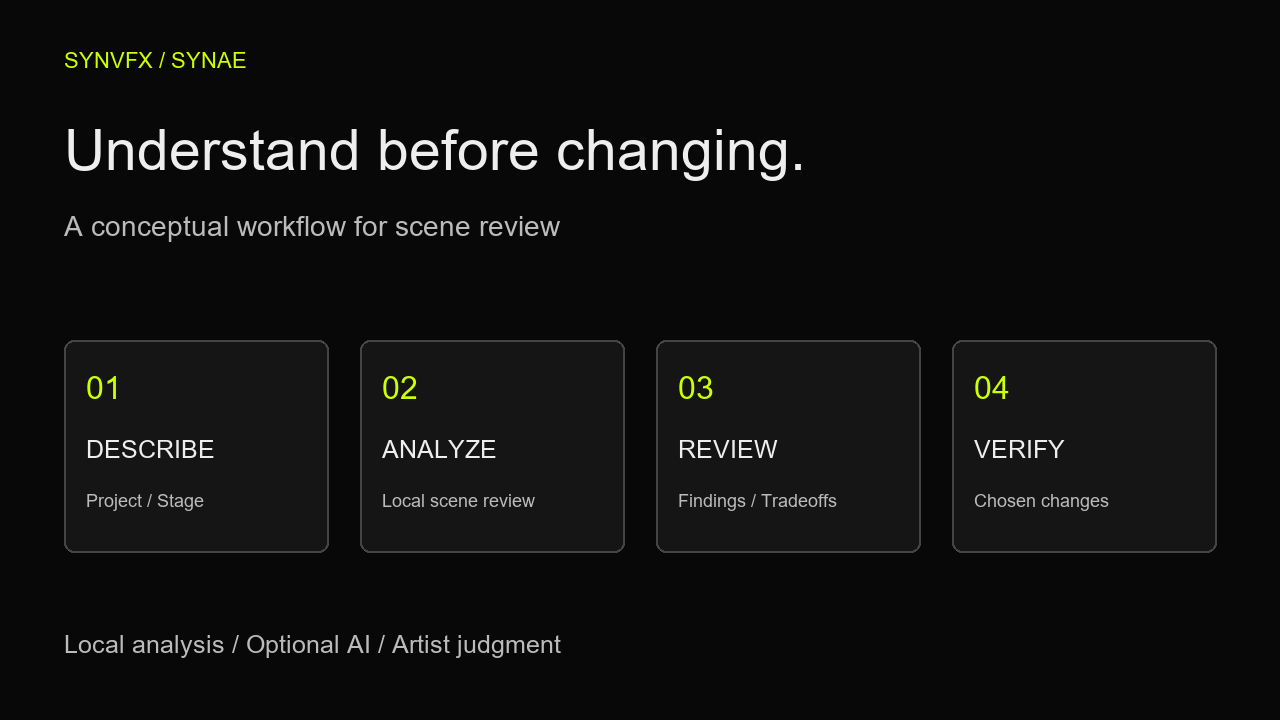
A Blender scene contains more than meshes and materials. It also contains decisions: how much detail a shot needs, which simulations must remain editable, and what the final deliverable demands. Understanding those decisions is part of diagnosing a scene. SYNAE is Synaptic Visual Effects’ scene analysis and workflow guidance tool for Blender.
Its documented workflow starts with local analysis and your project context. You read the findings, consider their tradeoffs, and decide what to change. Optional AI adds another review path where available; it is not a requirement for local analysis.
Start with local scene analysis
The documented Analyze Scene workflow asks you to describe the project and choose its stage. Standard analysis provides a bounded review; Deep adds topology and local asset checks. Local analysis does not require an account or a network connection.
That distinction matters when a scene belongs to a client or studio. You can begin with local findings rather than assuming every analysis requires a remote service. Local findings still need interpretation: a setting can be costly and appropriate at the same time.
Read the current SYNAE getting-started documentation →
Give the review a useful brief
A recommendation becomes more useful when it is tied to the work you are doing. Describe the output, camera demands, and stage of production in concrete terms. A distant background prop and a close-up hero asset do not need the same level of detail. An early layout scene and an approved simulation have different constraints on what can safely change.
- State whether you are troubleshooting navigation, animation playback, render preparation, or image quality.
- Describe the intended camera view and delivery requirements.
- Identify what must remain editable or visually unchanged.
- Record a baseline so you can judge whether a chosen change helps.
For example, “the viewport slows down while adjusting the camera in a wide environment shot” is a more useful starting point than “make my scene faster.” It names a repeatable task and a visual requirement without assuming a cause.
Treat findings as starting points for investigation
Read each finding’s explanation and tradeoffs before acting. A useful review helps you decide what to inspect next. It does not establish that every flagged setting is wrong, or that removing an expensive feature will preserve the final image.
Compare suspected components in a saved diagnostic copy. Repeat the same task after one change and inspect the visual consequence. Keep changes that improve the actual problem; revert experiments that reduce quality without a meaningful benefit.
Use the slow-scene troubleshooting method →
Understand the optional AI path
The documentation describes AI Disabled, SYNAE Cloud, and My OpenAI API Key choices. These are different modes with different prerequisites. Cloud service availability depends on the beta deployment and account access; the current guide explicitly says Cloud AI is not yet available during this beta. Do not assume a listed review option guarantees a working Cloud service today.
Where an optional AI mode is available and configured, reviews are manual requests. The documented workflow includes View AI Context so you can inspect the structured information before sharing it. Test Connection checks connection availability without making an AI request or using AI credits.
Keep advice and action separate. AI output can be incomplete or unsuitable for a particular production constraint. Compare its suggestions with the scene, the local findings, and your brief rather than accepting a confident explanation as proof.
Know what you are sharing
SYNVFX’s privacy documentation describes a manual Cloud review as sending bounded structured scene information, project intent, and your question. It does not automatically upload the blend file, raw geometry, textures, renders, or simulation caches. That is a description of the intended data flow, not permission to include confidential details.
Review View AI Context and any free text before using a remote mode. Names, descriptions, and questions can contain client information even when no file is uploaded. Follow your studio’s rules for external services and keep optional AI disabled when sharing is not permitted.
Read SYNVFX’s privacy information →
Review before applying a change
The current guide says only a limited set of existing safe settings has an Apply action; other advice requires your judgment. It also documents Undo Recommendation. This is a guarded workflow rather than a promise to automatically repair any Blender scene.
- Save a copy and record the original state.
- Read the explanation and identify the intended benefit.
- Apply a supported change only when it fits the shot.
- Repeat the baseline task and inspect representative frames.
- Use the documented undo path when appropriate, and keep a verified version.
Avoid turning a list of findings into a batch of unexamined changes. Several small adjustments can interact, and a speed improvement is not a success if it changes the approved image or breaks a downstream dependency.
When SYNAE fits your workflow
SYNAE’s scene analysis approach is relevant when you want a structured starting point for inspection, troubleshooting, or optimization. It complements the artist’s understanding of the scene. It should not replace final-render checks, simulation validation, or a studio’s review process.
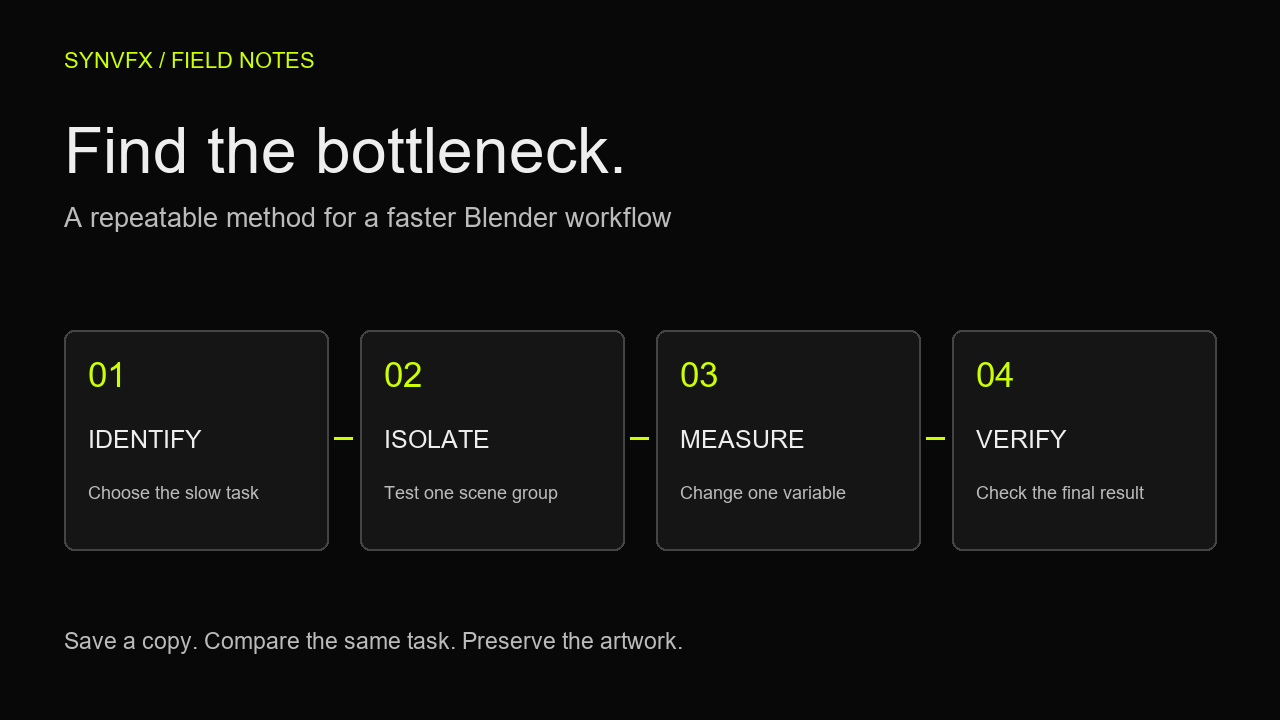
You can use the same discipline without a product: define the problem, isolate its cause, change one variable, and verify the result. SYNAE provides a documented review workflow around that kind of work; its current product and release information remain the place to check availability and scope.
Explore SYNAE and current beta availability →
Continue with the Blender optimization guide →
Check the current release notes →
Editorial basis: this introduction follows the SYNVFX getting-started, privacy, and release-note content available in the website codebase on October 6, 2026. The diagram is conceptual, not a screenshot of a diagnostic result. No benchmark, guaranteed fix, or unverified live Cloud capability is claimed.